

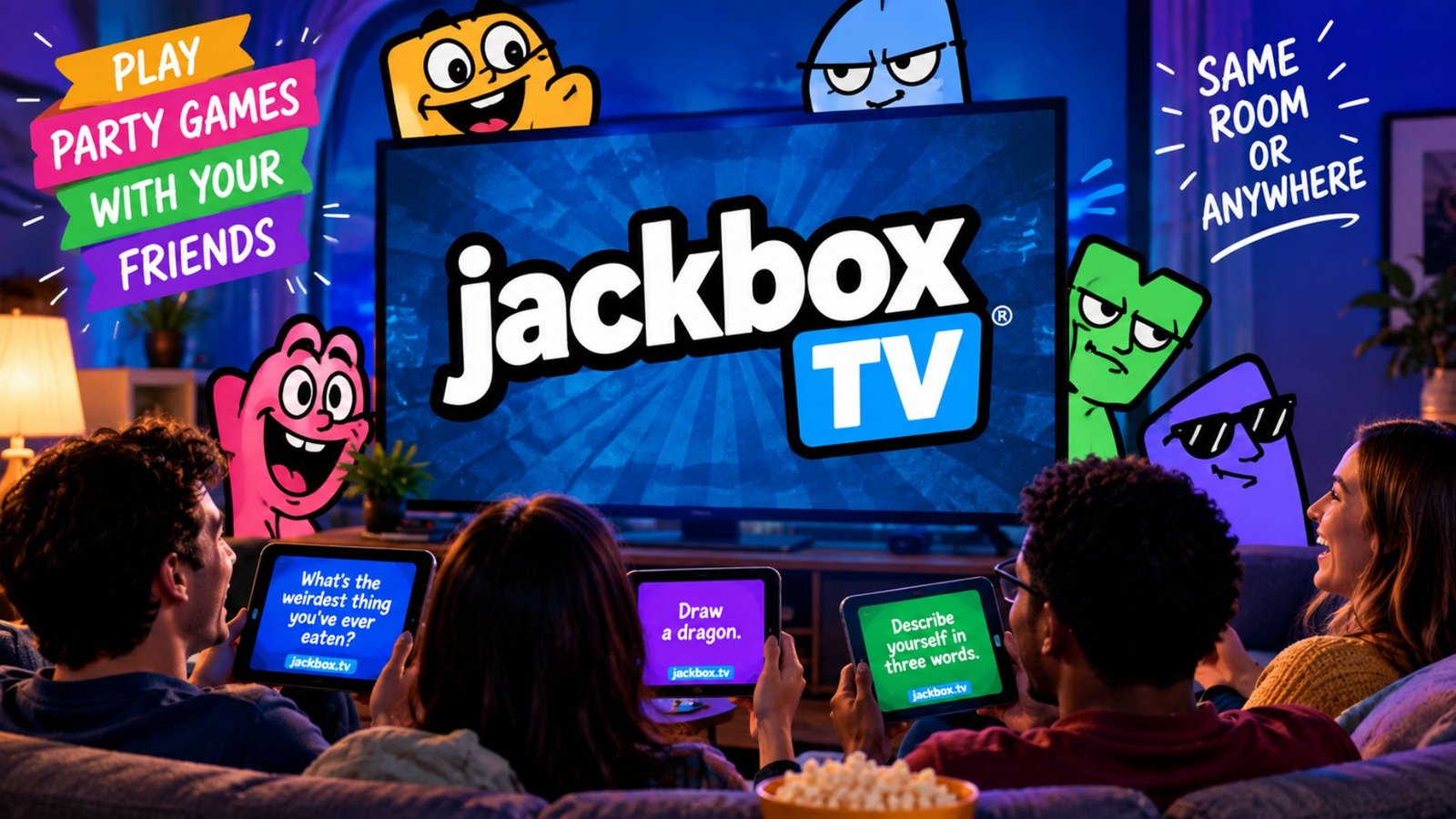
Getting into a Jackbox game sounds simple until you’re staring at a TV screen wondering where the room code goes, which device you should use, or why the game isn’t recognizing your phone. Jackbox TV join is designed to make multiplayer gaming quick: one person runs the game on a supported screen, while everyone else uses a phone, tablet, or computer as a controller.
The confusing part is that you don’t normally install the game on every player’s device. Instead, players visit the Jackbox Games website, enter the room code shown on the host’s screen, and choose a name. That setup works particularly well for parties because guests can join using devices they already have.
This guide explains exactly how the joining process works, what to do when the code fails, how the host should set up the game, and several small details that can prevent common problems. It also covers situations such as playing remotely, joining from a browser, handling duplicate player names, and getting back into a game after accidentally closing the page.
What Is Jackbox TV?
Jackbox TV refers to the multiplayer experience offered by Jackbox Games, where a host runs a game on a main screen and other players participate through their own internet-connected devices.
The important distinction is that the host’s device runs the game. Player devices generally function as controllers or input screens.
For example, imagine four friends sitting in a living room:
- One person launches a Jackbox game on a TV.
- The game displays a four-letter room code.
- Each player opens a browser on a phone.
- Players enter the designated Jackbox joining website.
- They enter the room code.
- Each player chooses a nickname.
- The host starts the game once everyone has joined.
This approach eliminates the need for four separate game installations.
How to Join Jackbox TV
The joining process is straightforward once you know what each screen is doing.
Step 1: Have the host start a game
The host needs to open a Jackbox title on the device connected to the TV or primary display.
Once a particular game is selected, it will normally reach a lobby or waiting screen.
Step 2: Look for the room code
A short room code should appear on the host’s screen.
This code identifies the specific game session.
Don’t use an old code from a previous round. Room codes are temporary, so players need the code currently displayed by the host.
Step 3: Open the Jackbox joining page
Players can use a phone, tablet, or computer with a modern web browser.
You don’t generally need a dedicated controller app just to participate.
Step 4: Enter the room code
Type the code exactly as displayed.
If the host sees something such as ABCD, every player should enter those same letters.
Step 5: Enter a player name
Choose a name that the host and other players can recognize.
If several people use similar names, it can become surprisingly difficult to tell whose answer or character belongs to whom.
Step 6: Wait in the lobby
After joining successfully, your name should appear on the host’s screen.
The host can then start the game when everyone is ready.
Can You Join Jackbox TV From a Phone?
Yes. A phone is one of the most convenient ways to participate.
The phone generally acts as the player’s personal controller. This is particularly useful for games involving:
- Written answers
- Drawing
- Voting
- Multiple-choice selections
- Typing prompts
- Secret responses
The main game remains visible on the television, while your phone provides the private interface needed for your individual actions.
Why a phone works so well
Traditional controllers aren’t always ideal for Jackbox because many games require typing or drawing.
Your phone already has:
- A keyboard
- A touchscreen
- An internet browser
- A personal display
That makes it suitable for the kinds of interactions Jackbox games use.
Do You Need the Jackbox Game on Your Phone?
Usually, no.
This is one of the easiest points to misunderstand when joining a game.
The person hosting the game needs access to the actual Jackbox game. Other players generally connect through a web browser rather than purchasing and installing the same game themselves.
That means a group can potentially play together even though only one person owns the game.
The important requirement is that the host’s game is running correctly and the players can communicate with that game session through their browsers.
Jackbox TV Join: What If the Room Code Doesn’t Work?
A failed room-code entry doesn’t necessarily mean the game is broken.
Try these checks in order.
1. Check the code carefully
The code on the TV is the source of truth.
Don’t rely on a code someone typed into a group chat several minutes earlier.
2. Make sure the host hasn’t left the lobby
If the host exits the game or starts another session, the previous room may no longer be active.
3. Refresh the browser
A browser page can occasionally get stuck during the joining process.
Refresh it and enter the current code again.
4. Check the internet connection
Both the host and players need a functioning connection.
A player’s Wi-Fi may appear connected while still having difficulty reaching the game service.
5. Try another browser
If one browser behaves strangely, switching to another modern browser can help identify whether the problem is browser-specific.
6. Check whether the host’s game is responsive
If the television screen itself has frozen, repeatedly entering the room code on your phone won’t solve the underlying problem.
The host should first make sure the game is still running normally.
A Useful Trick for Party Hosts
One practical improvement is to have everyone join before explaining the rules.
It sounds obvious, but it prevents a common party problem: the host begins explaining the first round while half the players are still trying to connect.
A smoother setup is:
- Launch the game.
- Display the room code.
- Ask everyone to join.
- Confirm every player appears in the lobby.
- Only then explain the game.
- Start the first round.
This is especially helpful when some guests have never played Jackbox before.
What Happens If You Accidentally Close the Browser?
Don’t panic.
If you accidentally close your player page, reopen the joining page and enter the currently displayed room code again.
However, the experience can vary depending on the game’s current state. If you’re trying to reconnect after a round has already moved forward, you may need to wait for the next appropriate screen or have the host restart the session.
A useful habit is to keep the browser tab open throughout the game rather than closing it between rounds.
Can You Play Jackbox Remotely?
Yes, but remote play introduces an additional requirement: everyone needs access to the host’s game screen.
For a normal living-room game, everyone sees the same television.
For remote play, the host can share the game screen through a suitable video or screen-sharing service. Players then join the game from their own devices.
The basic arrangement becomes:
Host’s game → shared screen → players’ browsers
The important distinction is that screen sharing handles the visual game while the players’ browsers handle their individual inputs.
Why audio and video quality matter
Remote Jackbox games depend heavily on conversation.
If the shared screen is delayed or the audio is difficult to understand, players can become confused about what is happening.
For remote sessions, it’s useful to:
- Use a stable internet connection.
- Keep the game screen visible.
- Make sure players can hear the host.
- Keep unnecessary applications closed.
- Ask players to mute duplicate audio sources when necessary.
One Device Can Be Better Than Another
Not every device provides the same experience.
Smartphone
Best for: Most players.
Advantages include portability, touchscreen controls, and a built-in keyboard.
Tablet
Best for: Players who prefer a larger input screen.
A tablet can be particularly comfortable for games involving drawing or lots of text.
Laptop or desktop
Best for: Remote players or people who prefer physical keyboards.
A computer can also make typing-heavy games more comfortable.
The key point is that the player device doesn’t need to be powerful. Most of the demanding game processing happens on the host side.
Common Jackbox Joining Mistakes
Several problems repeatedly cause unnecessary confusion.
Mistake 1: Searching for the game in an app store
Players sometimes assume they need to download the same game the host is playing.
For ordinary player participation, that’s generally unnecessary.
Mistake 2: Entering yesterday’s room code
Room codes are associated with the current session. Always use the code displayed on the host’s screen.
Mistake 3: Refreshing the TV instead of the player device
If one person’s phone isn’t connecting, restarting the entire host setup may be excessive.
First troubleshoot the affected player’s browser and connection.
Mistake 4: Using confusing nicknames
Funny names can be part of the experience, but names that are nearly identical can make multiplayer rounds unnecessarily confusing.
Mistake 5: Starting before everyone joins
If someone is still trying to connect, starting immediately can create avoidable problems.
Give everyone a moment to confirm their name appears on the host screen.
READ ALSO :One Piece: Characters, Filler List & Chopper
Three Less-Obvious Tips That Make Jackbox Easier
Keep the player browser separate from other browsing
On a phone, switching repeatedly between apps or browser tabs can interrupt the flow. Keeping the Jackbox page open makes reconnecting and responding faster.
The host should position the screen for everyone
Players sometimes focus so much on the joining process that they overlook the physical setup.
The TV should be visible to everyone, while each player should be able to comfortably reach their own device.
Test the connection before a large party
For a casual two-person test, connectivity problems are easy to fix. At a party with eight or more people, troubleshooting becomes much harder.
Starting the game a few minutes early gives the host time to discover browser, network, or screen-sharing problems before everyone arrives.
How Many People Can Join?
The player limit depends on the specific Jackbox game.
Some titles support relatively small groups, while others are designed for larger parties. Certain games can also accommodate audience participation beyond the active player count.
Because limits differ between individual games and editions, check the player capacity displayed for the specific title you’re hosting rather than assuming every Jackbox game supports the same number of participants.
This matters when planning a party: having enough people for a game doesn’t necessarily mean every person can become an active player.
Frequently Asked Questions
How do I join a Jackbox TV game?
Open the Jackbox joining page on a phone, tablet, or computer and enter the room code shown on the host’s game screen. Then enter your player name and wait for the host to start the game. You normally don’t need to own or install the game on your own device.
Can I join Jackbox TV without downloading an app?
In most cases, yes. Players can use a compatible web browser on their phone, tablet, or computer. The host, however, needs to run the actual Jackbox game on a supported platform.
Why isn’t my Jackbox room code working?
First confirm that you’re using the current code shown on the host’s screen. Then check your internet connection, refresh the browser, and make sure the host’s game is still active. If the problem continues, trying another browser or reconnecting to the network can help isolate the issue.
Can I play Jackbox with friends remotely?
Yes. Remote groups need a way to see the host’s game screen, typically through an appropriate screen-sharing setup, while each participant uses their own browser to submit answers and interact with the game. A stable connection and clear audio are particularly important for remote sessions.
Do all Jackbox games support the same number of players?
No. Player limits vary by game. Some titles are intended for smaller groups, while others support larger groups or additional audience participants, so check the specific game’s stated player capacity before starting a large session.
Conclusion
The Jackbox TV join process is easier once you understand the basic setup: one person hosts the actual game, the main screen displays what’s happening, and everyone else joins through a browser on their own device.
For the smoothest experience, use the current room code, keep the player browser open, confirm everyone has joined before starting, and troubleshoot the affected device before restarting the whole game.
Once those basics are handled, Jackbox’s phone-based controls become one of its most useful features. Players don’t have to carry extra controllers, and the setup can move from a living-room TV to a remote group with relatively little adjustment.
