

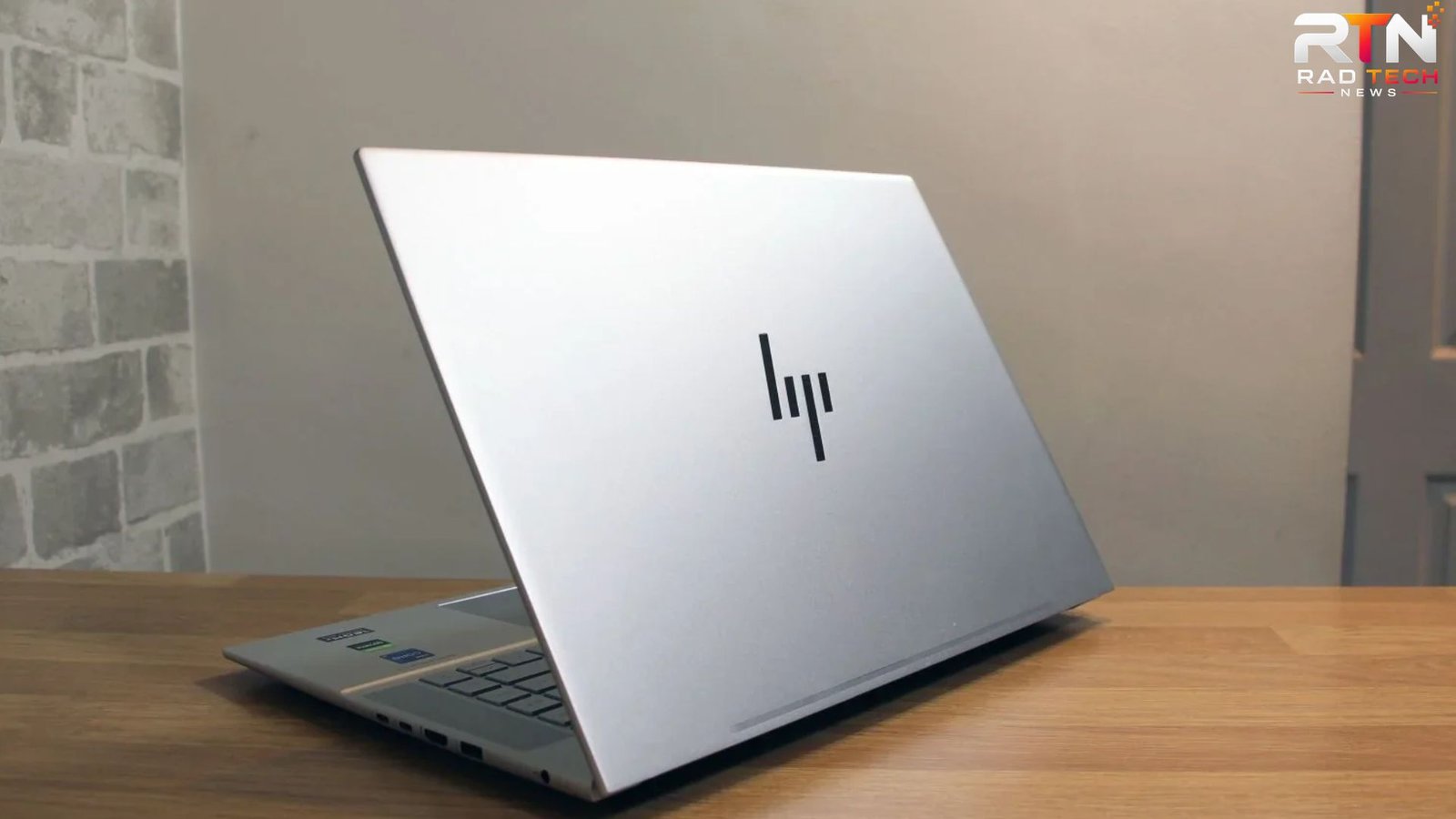
You know that moment when something appears on your screen that you need to save immediately—a payment confirmation, error message, work instruction, funny message, or important webpage—and suddenly you realize you don’t remember how to capture it. On an HP laptop, taking a screenshot is usually much easier than it first appears, but the exact method depends on your Windows version, keyboard layout, and whether you want the entire screen or only part of it.
The good news is that you don’t need special software for most screenshot tasks. Windows already includes several useful options, from a quick keyboard shortcut to the Snipping Tool, which lets you select exactly what you want to capture.
This guide explains how to screenshot on an HP laptop, including what to do when the Print Screen key doesn’t seem to work. It also covers a few practical tricks that can save time, such as capturing one window, copying a screenshot without saving a file, and finding screenshots you’ve already taken.
How to Take a Screenshot on an HP Laptop
The simplest method is usually the Print Screen key, often labeled PrtSc, PrtScn, or something similar.
Depending on your HP laptop model, you may need to combine it with another key.
1. Capture the Entire Screen
Press:
Windows key + PrtSc
Your screen may briefly dim, indicating that Windows captured the display.
The screenshot is normally saved automatically in:
Pictures → Screenshots
This is particularly useful when you need to capture everything visible on the screen without opening another application.
2. Copy the Screen Instead of Saving It
If you only need to paste the screenshot somewhere, press:
PrtSc
This copies the entire screen to the clipboard rather than necessarily creating a permanent image file.
You can then open Word, Paint, an email, or another application and press:
Ctrl + V
This method is handy when you’re sending a screenshot to someone and don’t want to manage another image file.
3. Capture Only the Active Window
Suppose you have several applications open but only want to capture your browser or a particular program.
Press:
Alt + PrtSc
Windows captures the currently active window rather than the entire desktop.
Then press Ctrl + V in Paint, Word, an email, or another compatible application.
This produces a cleaner result because you don’t have to crop unrelated windows afterward.
How to Screenshot Part of an HP Laptop Screen
For most everyday situations, partial screenshots are more useful than full-screen captures.
Windows provides a convenient shortcut:
Windows key + Shift + S
Your screen will become slightly darker, and a capture toolbar will appear.
You can then select the area you want to capture.
Depending on the available options, you can choose:
- Rectangular selection
- Freeform selection
- Specific window
- Full-screen capture
After selecting an area, the screenshot is generally copied to the clipboard. Windows may also display a notification that lets you open the capture in the Snipping Tool.
Why This Method Is Often Better
Imagine you’re reporting a problem with an online checkout page. You don’t need to send someone your entire desktop. You can capture only the error message and the relevant part of the page.
That makes the screenshot:
- Easier to understand
- Smaller to share
- Less cluttered
- More useful for troubleshooting
Using the Snipping Tool on an HP Laptop
The Snipping Tool is one of the most practical built-in screenshot utilities in modern Windows versions.
To open it, search for Snipping Tool from the Windows Start menu.
Once open, you can select the type of capture you need and choose the area of the screen.
The tool is especially useful when you want more control than a basic keyboard shortcut provides.
For example, if you’re preparing instructions for a colleague, you can capture one small section of an application instead of taking several full-screen screenshots.
A Useful Snipping Tool Habit
After capturing something important, don’t immediately close the tool.
Check the screenshot first.
Small mistakes—such as accidentally cutting off a button, heading, or error code—can make an otherwise useful screenshot confusing. A two-second check before sharing can prevent having to repeat the process.
What If the Print Screen Key Doesn’t Work?
This is one of the most common problems people encounter with HP laptop keyboards.
On some models, the Print Screen function is combined with another keyboard function. You may therefore need to hold the Fn key while pressing the screenshot key.
Try:
Fn + PrtSc
If that doesn’t work, try Windows + Shift + S instead. This shortcut is often the easiest workaround because it doesn’t depend on the traditional Print Screen behavior.
Check Your Keyboard Carefully
HP laptop keyboards aren’t all identical.
The screenshot function may be printed directly on a key or represented as a secondary function. If you see several symbols on a key, the Fn key may be required to access one of them.
This is an important practical distinction:
a screenshot shortcut that works on one HP laptop may behave differently on another HP model.
How to Find Screenshots on an HP Laptop
If you used Windows + PrtSc, check:
Pictures → Screenshots
If you used the Snipping Tool, the capture may be handled differently depending on your Windows settings and the version of the application.
If you pressed only PrtSc, you may not find an image file at all because the screenshot can simply be sitting in the clipboard.
That’s why people sometimes think their screenshot disappeared.
A Quick Way to Check
Open Paint and press:
Ctrl + V
If the screenshot appears, it was copied successfully to your clipboard.
You can then save it as an image file.
Three Screenshot Methods Compared
| Method | Best for | Automatically saves? |
|---|---|---|
| Windows + PrtSc | Entire screen | Usually yes |
| PrtSc | Pasting the entire screen | No, clipboard |
| Alt + PrtSc | Current window | No, clipboard |
| Windows + Shift + S | Selected area | Usually clipboard/notification |
| Snipping Tool | Controlled captures | Depends on how you save it |
The best method isn’t necessarily the fastest shortcut. It depends on what you’re trying to capture.
For quick full-screen evidence, Windows + PrtSc is convenient. For a small section, Windows + Shift + S is usually more practical.
Advanced Screenshot Tips for Everyday Use
Capture Before Closing an Error Message
If a program displays an unusual error, take the screenshot before restarting the application.
Error messages can disappear when you close the window, making troubleshooting much harder.
A screenshot preserves the exact wording, which can be more useful than trying to remember what the message said.
Use Screenshots for Technical Support
When contacting customer support, don’t just write:
“The website isn’t working.”
Capture the page showing the problem.
A useful support screenshot should ideally include the relevant error, button, page section, or status message. Avoid capturing unrelated personal information when it isn’t needed.
Be Careful With Sensitive Information
One commonly overlooked issue is privacy.
Before sharing a screenshot, check for:
- Email addresses
- Phone numbers
- Order numbers
- Passwords
- Account information
- Private conversations
- Payment details
A screenshot can contain considerably more information than the small error or message you intended to show.
Using Windows + Shift + S to capture only the necessary area can reduce this risk.
Why Your Screenshot May Look Different From What You Saw
There is another practical issue that can confuse users: some applications don’t capture exactly what you expect.
For example, a video may display differently in a screenshot, an application may use hardware-accelerated graphics, or a pop-up may disappear before the capture occurs.
If a screenshot doesn’t contain the expected content, try capturing the specific application window or use the Snipping Tool instead of repeatedly pressing Print Screen.
Unique insight: If you’re documenting a software problem, capturing the surrounding interface—not just the error box—can be extremely valuable. Support staff often need to know which page, application, or setting produced the error.
Can You Screenshot Without a Screenshot Key?
Yes.
You don’t necessarily need a dedicated Print Screen key.
The easiest alternative on a modern Windows HP laptop is:
Windows + Shift + S
This opens the screen capture interface and lets you select what you want to capture.
This is particularly useful on compact keyboards where the Print Screen function is difficult to identify or requires the Fn key.
Common Screenshot Mistakes
Pressing the Wrong Key Combination
If nothing appears to happen, don’t assume your HP laptop can’t take screenshots. Try Windows + Shift + S or Fn + PrtSc.
Forgetting the Clipboard
A screenshot taken with PrtSc may not appear as a file. Try Ctrl + V in Paint or another application.
Capturing Too Much
A full desktop screenshot can expose unnecessary information. Select only the relevant section whenever possible.
Not Checking the Screenshot
Always inspect important screenshots before sending them. Make sure text isn’t cut off and that the relevant information is readable.
HP Laptop Charger: A Quick Compatibility Reminder
Although screenshots don’t require a charger, people searching for HP laptop charger information are often dealing with a related practical problem: using the correct equipment for their particular laptop.
Don’t choose a charger based only on the fact that it has an HP logo or physically fits the charging port. Voltage, amperage, connector type, and the laptop’s power requirements matter.
If you’re replacing a charger, check the specifications printed on your original adapter and compare them with your laptop’s requirements. Using an unsuitable power adapter can cause charging problems or, in some circumstances, damage hardware.
For USB-C charging models, compatibility can also depend on whether the laptop and charger support the required power-delivery specification.
Frequently Asked Questions
How do I screenshot on an HP laptop with Windows 11?
Press Windows + Shift + S to open the screen capture interface. Select the area you want to capture, and Windows will copy the screenshot so you can paste it elsewhere. You can also use the Snipping Tool for additional capture options.
How do I take a screenshot on an HP laptop without the Print Screen button?
Use Windows + Shift + S. It allows you to select part of the screen without relying on the Print Screen key. This is one of the easiest methods when your keyboard layout doesn’t have an obvious screenshot button.
Where are screenshots saved on an HP laptop?
Screenshots captured with Windows + PrtSc are generally stored under Pictures → Screenshots. Screenshots copied with PrtSc or Windows + Shift + S may remain on the clipboard until you paste or save them. The exact behavior can vary with Windows and Snipping Tool settings.
Why isn’t my HP laptop taking screenshots?
First try Windows + Shift + S. If you’re using the Print Screen key, your HP keyboard may require Fn + PrtSc. Also remember that some screenshot methods copy the image to the clipboard rather than automatically saving a file.
Can I screenshot only one window on an HP laptop?
Yes. Press Alt + PrtSc to capture the active window, then paste it into an application using Ctrl + V. Alternatively, Windows + Shift + S lets you select a specific window through the capture interface.
Conclusion
Taking a screenshot on an HP laptop doesn’t require complicated software. For most users, Windows + Shift + S is the most flexible option because it lets you capture exactly the part of the screen you need. Windows + PrtSc is convenient when you want the entire screen saved automatically, while Alt + PrtSc works well when you only need the active window.
If your Print Screen key seems unresponsive, don’t assume something is broken. Your HP keyboard may require the Fn key, or you can simply use the Windows screenshot tools instead.
The best screenshot habit is simple:
capture only what’s necessary, check the result, and remove sensitive information before sharing it.
That small extra step makes screenshots far more useful for work, troubleshooting, and everyday communication.
