
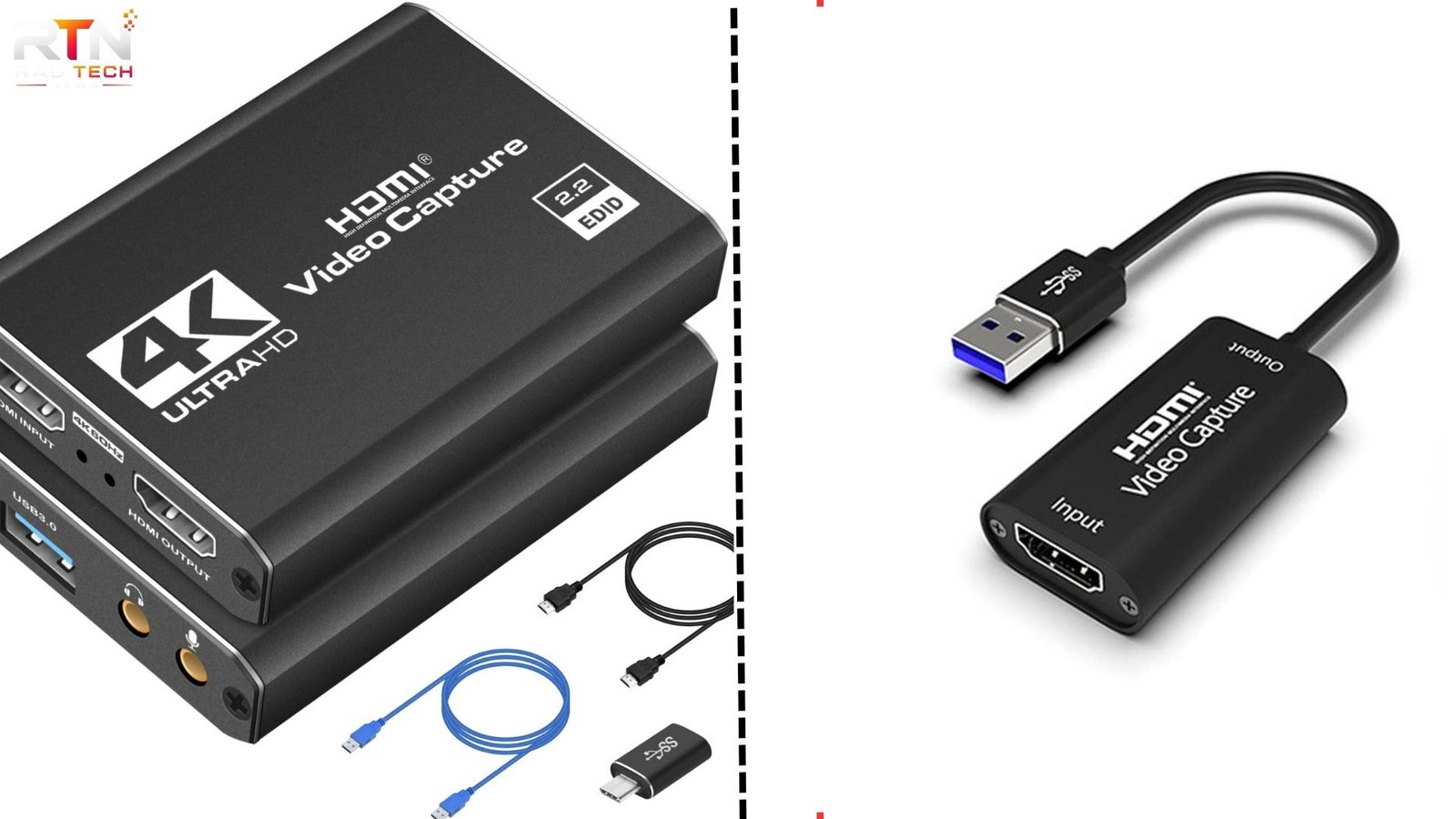
Buying a capture card sounds simple until you start comparing terms like 4K passthrough, 1080p recording, 120Hz support, USB bandwidth, PCIe, HDR, and hardware encoding. Two capture cards can look almost identical on paper yet behave very differently once you connect a console, camera, or gaming PC.
That is why choosing capture cards based only on the biggest resolution number is usually a mistake.
A good capture setup depends on what you are capturing, what resolution and refresh rate you actually use, how much latency you can tolerate, and whether your computer can reliably process the incoming signal. For some people, a basic USB video capture card is enough. For others, especially competitive gamers, dual-PC streamers, and multi-camera creators, the wrong device can introduce black screens, audio sync problems, frame drops, or limitations that are difficult to diagnose later.
This guide explains how video capture cards work, where they are genuinely useful, what specifications matter most, and how to avoid paying for features you may never use.
What Is a Capture Card?
A capture card is a device that receives a video and audio signal from another device and makes that signal available to a computer for recording, streaming, monitoring, or production work.
Common video sources include:
- PlayStation consoles
- Xbox consoles
- Nintendo Switch
- Gaming PCs
- DSLR and mirrorless cameras
- Camcorders
- Presentation systems
- Professional video equipment
In a typical gaming setup, your console sends an HDMI signal into the capture card. The capture card then sends one copy of that signal to your monitor or television while another copy is passed to your computer.
Your computer can then use streaming or recording software to process the captured feed.
The important point is that a capture card is not simply a screen recorder. It acts as a bridge between an external video source and your computer.
How Do Video Capture Cards Work?
Most consumer capture cards follow a simple signal path:
Source device → Capture card → Computer
If the device includes HDMI passthrough, another connection usually goes from the capture card to your display:
Source device → Capture card → Gaming monitor or TV
This creates two separate paths.
One path lets you continue playing or viewing the source normally. The second sends the signal to your computer for recording or streaming.
This distinction becomes important because the preview you see inside streaming software can have more delay than the direct passthrough signal.
For gaming, you normally want to play using the passthrough display rather than the software preview.
Do You Actually Need a Capture Card?
Not everyone does.
If you are recording gameplay on the same PC you are playing on, software such as OBS can often capture the game directly. A dedicated capture card may add little benefit unless you have a specific workflow.
Capture cards become much more useful when the source and recording computer are separate.
You will usually need one when:
- Recording console gameplay on a PC
- Streaming console games with custom overlays
- Using a camera as a high-quality webcam
- Building a dual-PC streaming setup
- Recording an external HDMI device
- Capturing presentations or live events
- Using multiple cameras in a production workflow
A capture card is therefore less about improving video quality and more about gaining access to a video signal that your computer otherwise cannot capture directly.
Internal vs External Capture Cards
Video capture cards generally fall into two categories.
External Capture Cards
External capture cards normally connect through USB.
They are popular because they are easy to install and can often be moved between computers.
Typical advantages include:
- Simple setup
- Laptop compatibility
- Portable design
- No need to open your PC
- Easy troubleshooting
They are ideal for console streaming, laptop setups, portable production, and beginners.
The main limitation is bandwidth. USB capture devices depend heavily on the USB connection available on your computer.
Connecting a high-bandwidth capture card to the wrong USB port can cause problems such as:
- Reduced resolution
- Dropped frames
- Device disconnects
- Black screens
- Audio instability
The port may physically fit while still lacking the bandwidth the device requires.
Internal PCIe Capture Cards
Internal capture cards install directly into a desktop PC’s PCIe slot.
They are often preferred for permanent streaming or production systems.
Advantages can include:
- Higher available bandwidth
- Support for multiple HDMI inputs
- Higher capture resolutions
- Better support for high refresh rates
- Cleaner permanent installations
They are particularly useful for dual-PC streaming or multi-camera production.
However, PCIe capture cards require a compatible desktop motherboard and available PCIe resources.
Capture Resolution vs Passthrough Resolution
This is one of the most misunderstood capture card specifications.
A capture card might advertise something like:
4K 120Hz passthrough
That does not automatically mean it records 4K at 120 frames per second.
Passthrough resolution refers to what can continue to your gaming monitor.
Capture resolution refers to what reaches your recording software.
For example, a device could allow you to play at:
4K 120Hz
while only recording:
1080p 60fps
or:
4K 60fps
This can actually be perfectly fine.
A competitive console player might want 120Hz gameplay while streaming at 1080p60 because most livestream viewers do not need the original 120Hz signal.
Always check passthrough and capture specifications separately.
Why Refresh Rate Matters
Resolution gets most of the attention, but refresh rate can be more important for gamers.
Suppose your gaming monitor runs at 144Hz or 240Hz.
If your capture setup only supports 60Hz passthrough at your chosen resolution, connecting the capture card could force your gaming display to operate at a lower refresh rate.
That can noticeably affect competitive games.
Players who use high-refresh-rate displays should check support for:
- 120Hz
- 144Hz
- 165Hz
- 240Hz
at the resolution they actually use.
Do not assume that a device supporting 4K automatically supports every lower resolution at every refresh rate.
Capture Card Latency Explained
Latency is the delay between something happening on the source device and appearing on another screen.
Capture cards can introduce different kinds of latency.
Passthrough Latency
This is the delay between the source device and the monitor connected through the capture card.
Good capture cards usually make this delay extremely small.
Preview Latency
This is the delay between the source and the preview displayed inside your recording software.
Preview latency can be noticeably higher because the signal must travel through the capture device, computer interface, drivers, and software.
This is why serious gaming setups use HDMI passthrough.
Trying to play fast games using the capture software preview can make controls feel delayed even when the capture card itself is functioning correctly.
The USB Port Matters More Than Many Buyers Realize
One practical issue that causes a surprising number of capture problems is USB bandwidth.
A computer may have several ports that look nearly identical but operate at different speeds.
A high-resolution capture card connected through a low-bandwidth connection may fail to deliver its advertised capabilities.
There is another problem that specifications rarely explain clearly.
Multiple USB ports can sometimes share the same internal USB controller.
That means connecting several high-bandwidth devices at once can create competition for bandwidth.
For example, a setup might include:
- Capture card
- Webcam
- External SSD
- USB microphone
- Audio interface
Individually, each device works perfectly.
Together, they may create dropped frames or instability because they are sharing the same controller.
This is one of the first things worth investigating when a capture setup works inconsistently.
What Does Passthrough Mean?
HDMI passthrough lets the original signal continue through the capture card to another display.
Without passthrough, you may need to watch the source inside the capture software.
For gaming, passthrough is extremely useful because it allows low-latency gameplay while the computer records the same signal.
A typical setup looks like this:
- Console HDMI connects to capture card input.
- Capture card output connects to gaming monitor.
- Capture card USB connection goes to computer.
- Recording software receives the captured signal.
You play using the monitor while the computer handles recording or streaming.
1080p, 1440p or 4K Capture?
Higher resolution is not automatically better.
Choose based on your actual output.
1080p Capture
1080p60 remains extremely practical for streaming.
Benefits include:
- Lower bandwidth requirements
- Smaller recordings
- Easier editing
- Lower computer workload
- Good compatibility
For many livestreaming setups, it is still the sensible choice.
1440p Capture
1440p can be useful for PC gaming creators who want more detail without the storage demands of 4K.
Compatibility, however, can vary between devices.
Always confirm that the capture card officially supports the exact resolution and refresh rate you intend to use.
4K Capture
4K capture makes sense for creators who:
- Produce high-resolution gameplay
- Record camera footage
- Need cropping flexibility
- Archive footage for later editing
- Publish high-quality tutorials or product demonstrations
The downside is significantly larger files and heavier editing requirements.
HDR Support Can Be More Complicated Than It Looks
HDR capture introduces another layer of complexity.
A capture device might support:
- HDR passthrough
- HDR capture
- HDR-to-SDR conversion
These are different features.
For example, you might play a game in HDR while streaming an SDR version to viewers.
This requires proper tone mapping.
Poor tone mapping can produce washed-out highlights, dull colors, or overly dark footage.
If HDR is important to your workflow, check exactly what happens to the captured signal rather than simply looking for “HDR supported” on the specification sheet.
Capture Cards for Console Gaming
Console gamers are one of the biggest groups using capture cards.
A common setup includes:
Console → Capture card → TV or monitor
and:
Capture card → Streaming PC
This allows you to add:
- Webcam overlays
- Alerts
- Chat
- Microphone processing
- Scenes
- Stream graphics
without relying entirely on the console’s built-in streaming tools.
For modern consoles, pay particular attention to refresh rate, HDR, VRR, and passthrough resolution.
Capture Cards for Dual-PC Streaming
Dual-PC streaming separates gaming and streaming workloads.
The gaming PC focuses on the game.
The streaming PC handles:
- Encoding
- Recording
- Overlays
- Browser sources
- Stream management
The capture card transfers the gaming PC’s output to the streaming computer.
This setup can provide more flexibility, but it is not automatically superior to a powerful single-PC setup.
Modern graphics cards include efficient hardware encoders, so many streamers no longer need a second PC purely for performance reasons.
Dual-PC systems make the most sense when reliability, workload separation, or complex production requirements justify the additional hardware.
Using a Camera With a Video Capture Card
Capture cards can also convert HDMI camera output into a video source your computer recognizes.
This is useful for:
- Livestreaming
- Online teaching
- Interviews
- Podcasts
- Professional meetings
- Remote presentations
The camera must provide a clean HDMI output if you want a professional-looking feed.
Clean HDMI means the output does not display camera interface elements such as battery indicators, focus boxes, or recording information.
Another practical consideration is camera power.
For longer sessions, continuous external power is usually more reliable than batteries.
Audio Problems Are Often Not Capture Card Problems
Users sometimes blame the capture card when audio becomes delayed or disappears.
The real problem may be the signal routing.
Audio can travel through:
- HDMI
- USB microphone
- Headset controller
- Audio interface
- Gaming PC
- Streaming PC
Using several audio paths can create synchronization differences.
For example, your HDMI gameplay audio might arrive slightly later than your microphone.
Streaming software can compensate by adding synchronization offsets.
A clean audio plan is therefore just as important as choosing the capture hardware itself.
Three Capture Card Insights That Are Easy to Miss
1. Your Entire Signal Chain Sets the Limit
The capture card is only one part of the system.
Your final capability depends on the weakest component in the chain:
Source → HDMI cable → Capture card → USB/PCIe connection → Computer → Software
A high-end capture card cannot fix an HDMI cable, USB controller, GPU configuration, or software setting that cannot handle the required signal.
2. Passthrough Capability May Matter More Than Recording Capability
For gamers, how the game feels while playing can matter more than the maximum recording resolution.
A card that records 1080p60 but preserves your preferred high-refresh-rate gameplay may be more useful than a device that captures higher resolution while limiting your display.
3. Stability Often Beats Maximum Specifications
Production systems benefit from consistency.
A capture card that reliably runs for six hours at 1080p60 can be more valuable than one with impressive maximum specifications that frequently disconnects or requires troubleshooting.
For livestreaming, reliability should be treated as a major performance feature.
Common Capture Card Mistakes
Buying Based Only on 4K Marketing
Check whether 4K refers to recording, passthrough, or both.
Using the Wrong USB Connection
High-bandwidth capture devices need compatible ports and cables.
Playing Through the Software Preview
Use HDMI passthrough for latency-sensitive gaming.
Ignoring Refresh Rate Support
Gamers using 120Hz or higher displays should verify exact passthrough capabilities.
Overlooking HDCP
Protected HDMI content may not be capturable.
Some consoles and streaming services use HDCP to prevent unauthorized recording.
Assuming a Capture Card Improves Video Quality
A capture device captures the signal it receives.
It cannot create detail that is not present in the original source.
How to Choose the Right Capture Card
Before buying anything, answer these questions:
- What device am I capturing?
- What resolution do I play or work at?
- What refresh rate must reach my display?
- What resolution do I actually want to record?
- Do I need HDR?
- Do I need VRR support?
- Am I using a desktop or laptop?
- How many video sources will I capture?
- What USB or PCIe connectivity does my computer have?
- Will I stream, record, or both?
Once these answers are clear, choosing a capture card becomes much easier.
For example, someone streaming Nintendo Switch gameplay at 1080p60 has very different requirements from someone recording 4K console gameplay while playing at 120Hz.
Pay for the workflow you actually have, not the highest specification printed on the box.
FAQ
What does a video capture card do?
A video capture card receives video and audio from an external source and sends it to a computer for recording or streaming. It is commonly used with gaming consoles, cameras, and dual-PC streaming systems. Many models also provide HDMI passthrough so you can continue using a monitor or television while capturing the signal.
Do I need a capture card for streaming?
You usually need one when streaming from an external device such as a console or separate gaming PC. If you are gaming and streaming on the same computer, software capture may already handle the job. A capture card becomes valuable when you need to bring an external HDMI signal into your streaming setup.
Is a 4K capture card worth it?
It depends on your workflow. If you create 4K recordings, use high-resolution cameras, or want extra detail for editing, 4K capture can be useful. If you mainly livestream at 1080p60, paying extra for maximum 4K recording capability may provide little practical benefit.
Does a capture card reduce gaming performance?
A capture card usually has little impact on console gaming because the computer handles the recording separately. In dual-PC setups, it can help separate gaming and streaming workloads. However, incorrect passthrough settings may limit resolution, HDR, or refresh rate even if game performance itself remains unchanged.
Can I use a capture card with a laptop?
Yes. External USB capture cards are commonly used with laptops. Make sure the laptop provides the required USB bandwidth and has enough processing power for your recording or streaming settings. High-resolution capture can demand considerably more system resources.
What is the difference between a capture card and HDMI splitter?
An HDMI splitter duplicates an HDMI signal to multiple displays or devices. A capture card converts the signal into data that a computer can record or stream. Some capture cards include passthrough functionality, but that does not make them the same as a basic HDMI splitter.
Conclusion
Capture cards are most useful when you need to bring video from an external device into a computer. The best choice is not automatically the model with the highest resolution printed on the specification sheet.
Look at the complete workflow.
Check capture resolution, passthrough resolution, refresh rate, HDR support, connection bandwidth, latency, and the capabilities of your computer. Gamers should pay particular attention to passthrough and refresh rate, while camera users should focus on clean HDMI output, stability, and reliable long-session performance.
Most importantly, treat the capture card as one component in a larger signal chain. When every part of that chain is compatible, even a relatively simple video capture card can produce a smooth, reliable setup.
