

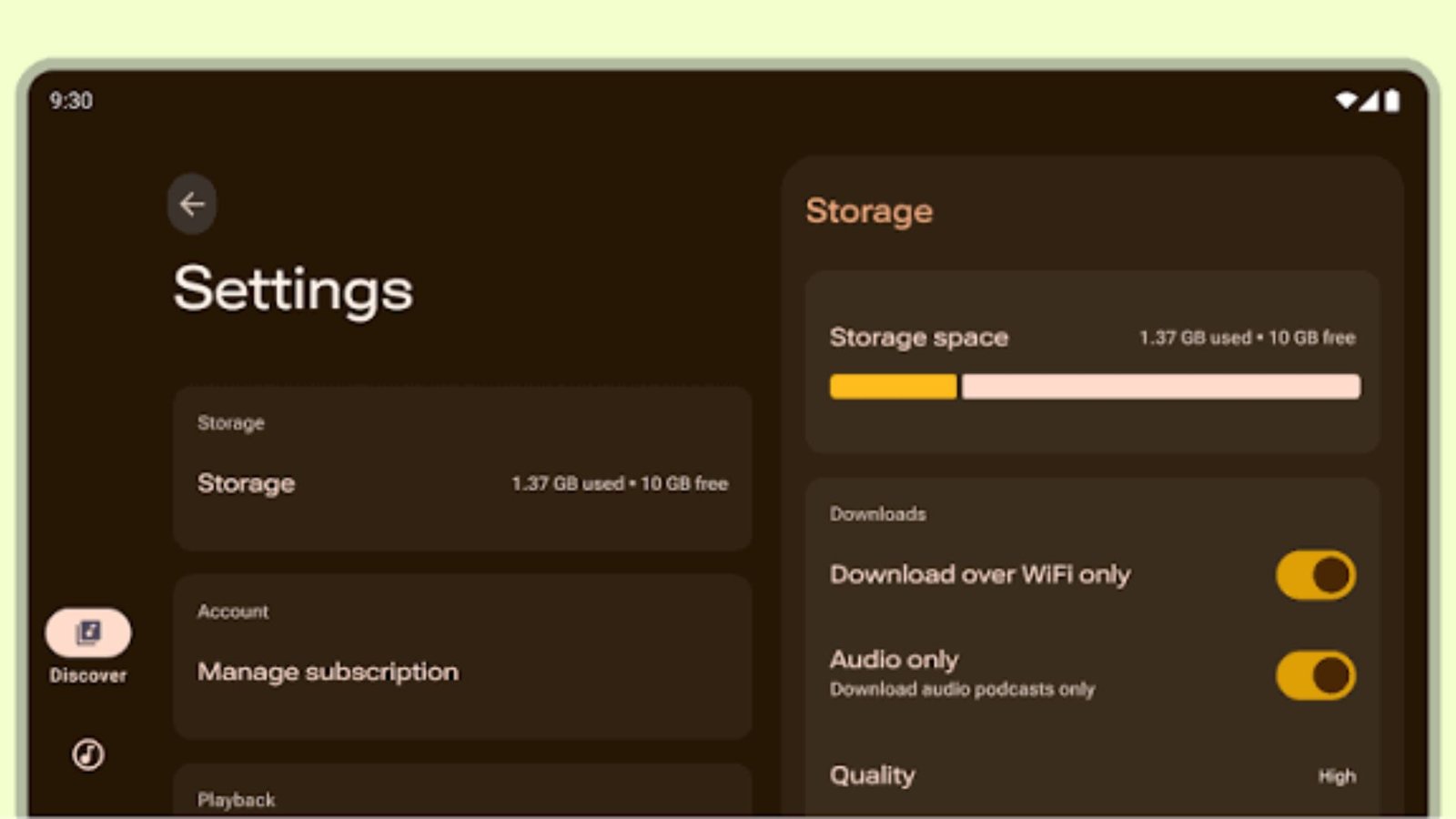
Your device may not work the way you expect when the wrong options are selected. A poor network connection, unwanted notifications, privacy concerns, or camera problems can make everyday tasks frustrating. The good news is that you can solve many of these problems through your device’s settings. This guide explains how to open settings, adjust important features, protect your privacy, and reset network connections on an iPhone. You will also learn how to manage Google, Chrome, Android, and other common device options.
What Are Settings and Why Are They Important?
Settings are the controls that allow you to customise how a phone, computer, browser, or application works. They help you manage connections, display preferences, notifications, security, privacy, and other features.
For example, you can use your phone’s settings to:
- Connect to Wi-Fi and Bluetooth.
- Change screen brightness and sound.
- Control app permissions.
- Manage location access.
- Update passwords and security options.
- Reset network connections.
- Control camera and microphone access.
Every device has its own settings menu. However, most devices organise their options into similar categories, making them easier to understand.
How to Open Settings on Your Device
Beginner-friendly guide
The easiest way to find the settings menu is through your device’s home screen. Follow these steps:
On an iPhone:
- Unlock your iPhone.
- Swipe down on the Home Screen if necessary.
- Find the Settings app.
- Tap the grey gear-shaped settings icon.
- Select the option you want to change.
On an Android phone:
- Unlock your phone.
- Swipe down from the top of the screen.
- Tap the gear icon in Quick Settings.
- Alternatively, find the Settings app in your app drawer.
- Tap it to view available options.
On a Windows computer:
- Click the Start button.
- Select Settings.
- Choose System, Network & Internet, Privacy & Security, or another category.
Quick tip: If you cannot find the Settings app, use the search feature on your device and type “Settings.”
What Can You Find in the Settings App?
The settings app contains different controls for managing your device. Each category handles a particular function.
Here is a detailed table explaining the most common options.
| Setting category | Main purpose | What you can manage |
|---|---|---|
| Wi-Fi | Internet connection | Networks and passwords |
| Bluetooth | Wireless connections | Headphones and accessories |
| Display | Screen appearance | Brightness and text size |
| Sound | Audio control | Ringtones and volume |
| Privacy | Personal information | App permissions and tracking |
| Location | Location access | GPS and location sharing |
| Camera | Camera permissions | App access and camera options |
| Notifications | Alerts | Sounds and pop-up messages |
| Security | Device protection | Passcodes and authentication |
| System | Device management | Updates, language and reset options |
| Applications | Installed apps | Storage and permissions |
| Accessibility | Easier device use | Magnification and accessibility tools |
The names and locations of these options can differ between Android manufacturers, iPhone models, and operating system versions.
How to Reset Network Settings on iPhone
Resetting network connections can help when your iPhone cannot connect to Wi-Fi, struggles with mobile data, or has problems with VPN connections.
However, you should try simpler solutions first, such as restarting your phone, checking your router, and turning Airplane Mode on and off.
Step-by-Step: How to Reset Network Settings
Follow these steps to reset network settings on an iPhone:
- Open the Settings app.
- Tap General.
- Scroll down and select Transfer or Reset iPhone.
- Tap Reset.
- Select Reset Network Settings.
- Enter your iPhone passcode if requested.
- Confirm your selection.
Your iPhone will restart the network configuration.
What Happens After Resetting Network Settings?
This process removes saved network configurations, not your personal photos, messages, or installed applications.
| Item | What happens |
|---|---|
| Saved Wi-Fi networks | Removed |
| Saved Wi-Fi passwords | Removed |
| Cellular settings | Reset |
| VPN settings | Relevant manually configured settings removed |
| APN settings | Reset |
| Photos and videos | Not deleted |
| Contacts | Not deleted |
| Installed apps | Not deleted |
| Personal documents | Not deleted |
You may need to reconnect to your Wi-Fi network and enter its password again.
Important: Do not select “Erase All Content and Settings” if your goal is only to fix a network problem. That option erases your personal content.
Apple recommends using a network reset when other connection troubleshooting steps have not worked. Apple Support+1
When Should You Reset Network Settings?
Consider this option if:
- Your iPhone repeatedly disconnects from Wi-Fi.
- Your phone cannot connect to a known wireless network.
- Mobile data stops working despite having an active plan.
- VPN connections cause unexpected problems.
- Network configurations appear corrupted.
A network reset will not fix every internet problem. If several devices cannot connect to the same network, the router or internet service provider may be responsible.
How to Reset Settings Without Losing Personal Data
Sometimes, a device develops problems because of incorrect configurations. You may want to restore its original preferences without deleting personal files.
On an iPhone, the Reset All Settings option restores many system preferences to their defaults.
To use it:
- Open Settings.
- Select General.
- Tap Transfer or Reset iPhone.
- Select Reset.
- Choose Reset All Settings.
- Confirm your decision.
This option resets network, privacy, location, keyboard, and other preferences. It does not delete your photos, videos, or personal documents.
However, it changes more options than a network reset. Review the differences before proceeding.
| Reset option | Main purpose | Deletes personal files? |
|---|---|---|
| Reset Network Settings | Fix network problems | No |
| Reset All Settings | Restore system preferences | No |
| Reset Location & Privacy | Restore permission preferences | No |
| Reset Keyboard Dictionary | Remove learned words | No |
| Erase All Content and Settings | Completely erase the device | Yes |
Always create a backup before performing a major device reset. Apple Support
How to Manage Privacy Settings on Your Phone
Privacy controls help you decide which applications can access your personal information.
For example, a shopping application may request access to your location, while a video application may request camera and microphone permissions.
You do not have to approve every request.
Important Privacy Options
- Location access: Controls whether apps can identify your location.
- Camera permission: Determines which apps can use your camera.
- Microphone permission: Controls access to audio recording.
- Contacts permission: Determines whether apps can read your contacts.
- Photo access: Controls which applications can view your pictures.
- Notification access: Manages alerts from installed applications.
How to Change App Permissions on Android
- Open Settings.
- Select Apps.
- Choose the application you want to manage.
- Tap Permissions.
- Select the permission you want to change.
- Choose Allow or Don’t Allow.
Depending on your Android version, you may also see options such as Allow only while using the app or Ask every time.
These controls help limit unnecessary access to your personal information. Google Play Help+1
How to Manage Location Settings
Location services help applications provide maps, navigation, weather information, and nearby recommendations.
However, not every application needs your precise location.
You can control location access through your phone’s privacy controls.
On Android:
- Open Settings.
- Select Location.
- Tap App location permissions.
- Choose an application.
- Select the level of location access you prefer.
On iPhone:
- Open Settings.
- Select Privacy & Security.
- Tap Location Services.
- Choose an application.
- Select an available permission.
Common permission choices include:
- Never.
- Ask Next Time or When I Share.
- While Using the App.
- Always, where supported.
Some iPhones also offer a Precise Location option. Turning it off allows an app to receive approximate rather than precise location information.
Remember that disabling location access may affect navigation, delivery tracking, and other location-based services.
How to Manage Camera Settings and App Access
Camera controls allow you to manage how applications use your phone’s camera.
For example, a video meeting application needs camera permission to show your video. A social media application may need access when you upload pictures or record content.
You can review these permissions whenever you want.
On Android:
- Open Settings.
- Select Apps.
- Choose the application.
- Tap Permissions.
- Select Camera.
- Allow or deny access.
On iPhone:
- Open Settings.
- Select Privacy & Security.
- Tap Camera.
- Review the applications listed.
- Turn camera access on or off for each app.
If your camera does not work, check whether another application is using it. Also, make sure you have not accidentally disabled camera access.
How to Open and Manage Chrome Settings
Google Chrome includes browser controls for privacy, security, downloads, passwords, notifications, and website permissions.
You can adjust these options on both computers and mobile devices.
How to Open Chrome Settings on a Computer
- Open Google Chrome.
- Click the three-dot menu in the upper-right corner.
- Select Settings.
- Choose the category you want to manage.
How to Open Chrome Settings on Android
- Open the Chrome application.
- Tap the three-dot menu.
- Select Settings.
- Review the available browser options.
Important Chrome Browser Options
| Chrome option | What it controls |
|---|---|
| Privacy and Security | Browsing protection and privacy |
| Site Settings | Website permissions |
| Password Manager | Saved passwords |
| Downloads | Download preferences |
| Notifications | Website alerts |
| Languages | Language preferences |
| Appearance | Browser appearance |
| Search Engine | Default search provider |
| Performance | Memory and performance features |
Google Chrome also allows you to control individual website permissions.
For example, you can block a website from accessing your camera, microphone, or location without changing permissions for every other website. Google Chrome Help+1
How to Manage Google Settings
Google provides several controls that help you manage your account, search preferences, privacy, and security.
These options are useful if you want to control how Google services use your information.
How to Open Google Account Settings
- Open the Google app or visit your Google Account through a browser.
- Select your profile picture.
- Choose Manage your Google Account.
- Review the available sections.
- Select the option you want to update.
You can manage several important areas:
- Personal information.
- Passwords and account security.
- Connected devices.
- Privacy controls.
- Search history.
- Data and personalization.
- Third-party application access.
How to Change Google Search Settings
Google Search allows you to customise how search results appear.
You can manage options such as:
- Search language.
- SafeSearch preferences.
- Search history.
- Personalised search experiences.
- Search result preferences.
To access these options, open Google Search, select Settings, and choose the relevant preference.
How to Manage Safe Search Settings
SafeSearch helps filter explicit content from Google Search results. It can be useful for families, students, and people who want a cleaner search experience.
Google provides three main SafeSearch options:
| Option | Explanation |
|---|---|
| Filter | Attempts to remove explicit results |
| Blur | Blurs explicit images |
| Off | Does not apply the SafeSearch filter |
How to Change SafeSearch
- Open Google Search.
- Select Settings.
- Find SafeSearch.
- Choose Filter, Blur, or Off.
- Confirm your selection if required.
Your ability to change this preference may depend on your account, age, device management, or network administrator.
SafeSearch does not replace parental supervision or other online safety measures.
How to Open Assistant Settings
Voice assistants help users perform everyday tasks through spoken commands.
Depending on your device, assistant preferences may include:
- Voice recognition.
- Preferred language.
- Voice responses.
- Personal results.
- Assistant activation.
- Connected services.
On supported Android devices, open the Google app, tap your profile picture, and look for Settings or Google Assistant preferences. The exact menu can differ depending on your device and the assistant version.
You can also search your phone for Assistant to find the relevant controls.
What Are System Settings?
System settings control the main operating features of your device. They are different from individual application preferences because they affect the wider phone or computer.
Common system controls include:
| System option | Function |
|---|---|
| Software Update | Installs operating system updates |
| Language | Changes device language |
| Date and Time | Controls clock preferences |
| Storage | Displays available space |
| Battery | Manages power usage |
| Accessibility | Supports users with different needs |
| Reset Options | Restores selected system preferences |
| Backup | Helps protect important data |
Keeping your operating system updated can improve security, compatibility, and performance.
Before installing a major update, check your available storage and make sure your device has enough battery power.
How to Fix Common Settings Problems
Sometimes, a menu may not open, a permission may not work, or a device may fail to save a change.
You can solve many common problems with a few simple checks.
| Problem | Possible reason | Recommended solution |
|---|---|---|
| Settings app will not open | Temporary software issue | Restart your device |
| Wi-Fi keeps disconnecting | Router or network issue | Restart router and phone |
| Camera is not working | Permission disabled | Review camera permissions |
| Location is inaccurate | Location access problem | Check location services |
| Chrome is running slowly | Too many tabs or extensions | Close unnecessary tabs |
| Notifications are missing | Alerts disabled | Review notification permissions |
| Google search is restricted | SafeSearch or account restrictions | Review available search preferences |
| Settings changes do not save | Device restrictions | Check administrator controls |
Should You Reset Your Device to Fix Every Problem?
No. A complete device reset should not be your first troubleshooting step.
Try these solutions before performing a reset:
- Restart your phone.
- Install available software updates.
- Check your internet connection.
- Review application permissions.
- Clear unnecessary temporary files.
- Check available storage.
- Contact the device manufacturer if the problem continues.
A targeted fix is usually safer than resetting every preference on your device.
iPhone, Android, and Chrome Settings: Key Differences
Although these platforms provide similar controls, their menus and features are not identical.
| Feature | iPhone | Android | Chrome |
|---|---|---|---|
| Main menu | Settings app | Settings app | Three-dot menu |
| Network management | Wi-Fi and Cellular | Network & Internet or Connections | Limited browser controls |
| Privacy | Privacy & Security | Security & Privacy | Privacy and Security |
| Location | Location Services | Location | Site permissions |
| Camera access | Privacy & Security | Apps and Permissions | Site Settings |
| Reset options | Transfer or Reset iPhone | System or Reset options | Reset settings |
| Updates | Software Update | System Update | Browser updates |
This comparison helps you understand where to find common controls without confusing browser preferences with phone-level options.
Best Practices for Managing Your Device Settings
Good device management does not require changing every available option. Focus on the controls that affect your security, privacy, and daily experience.
Follow these practical recommendations:
- Review app permissions regularly.
- Use a strong screen lock.
- Install official software updates.
- Avoid granting unnecessary camera and microphone access.
- Check location-sharing permissions.
- Use trusted Wi-Fi networks.
- Keep important data backed up.
- Review browser privacy controls.
- Avoid installing applications from unknown sources.
- Understand the difference between resetting preferences and erasing personal data.
These small habits can help keep your device organised, secure, and easier to use.
Frequently Asked Questions About Settings
1. How do I open settings on my phone?
Unlock your phone and find the Settings app on your Home Screen or app drawer. Tap its gear-shaped icon to access network, privacy, display, security, and other device options.
2. How to reset network settings on iPhone without deleting data?
Open Settings, select General, tap Transfer or Reset iPhone, choose Reset, and select Reset Network Settings. This removes saved network configurations but does not delete personal photos, videos, contacts, or applications.
3. Where can I find privacy settings on my phone?
On an iPhone, open Settings and select Privacy & Security. On Android, open Settings and look for Security & Privacy or Privacy. Menu names may vary by manufacturer and operating system version.
4. How do I open Chrome settings on my phone?
Open Google Chrome, tap the three-dot menu, and select Settings. You can manage passwords, website permissions, notifications, privacy, and other browser preferences.
5. What happens when I reset all settings on an iPhone?
Reset All Settings restores many system preferences to their default values. It does not erase personal media or documents, but it resets network, privacy, location, keyboard, and other preferences.
6. How can I change SafeSearch settings on Google?
Open Google Search, select Settings, and find SafeSearch. Choose Filter, Blur, or Off, depending on your preferences and whether your account or administrator allows the change.
Conclusion
Understanding your device’s settings makes it easier to solve everyday problems, protect personal information, and improve your overall experience. Whether you use an iPhone, Android phone, Google services, or Chrome, knowing where to find important controls gives you more control over your technology.
Start by reviewing your privacy permissions, checking your network connections, and updating your device. If you experience connection problems, try basic troubleshooting before resetting network configurations.
Have you recently experienced a problem with your phone or browser? Explore the relevant options and make the changes that best suit your needs.
